

What you can do with it
Instead of clicking through your dashboard, you can just ask Claude. A few examples of the kinds of requests the Claude App understands:- Products & inventory — “Hide the black hoodie from my store,” “How much stock do I have left on the tour tee?”, “Add the tour tee to my Fall 2026 collection.”
- Create new merch — “Create a new t-shirt with this design” (Claude walks you through uploading artwork, picking products, and previewing the final result)
- Orders — “Show me today’s orders,” “What’s the status of order #1042?”, “List donations from the last week.”
- Promotions — “Create a SUMMER20 promo code for 20% off,” “Deactivate the BLACKFRIDAY discount.”
Looking for analytics, financial reports, memberships data, integrations, or help-article search? Those live on the developer-facing MCP server at
https://mcp.fourthwall.com — see the MCP Server guide.Before you start
You’ll need:- A Fourthwall shop
- A Claude.ai account (free tier works)
Step 1: Open Claude’s Connectors page
Sign in to claude.ai and go to Customize > Connectors. You can also get there from your profile menu in the top-right corner.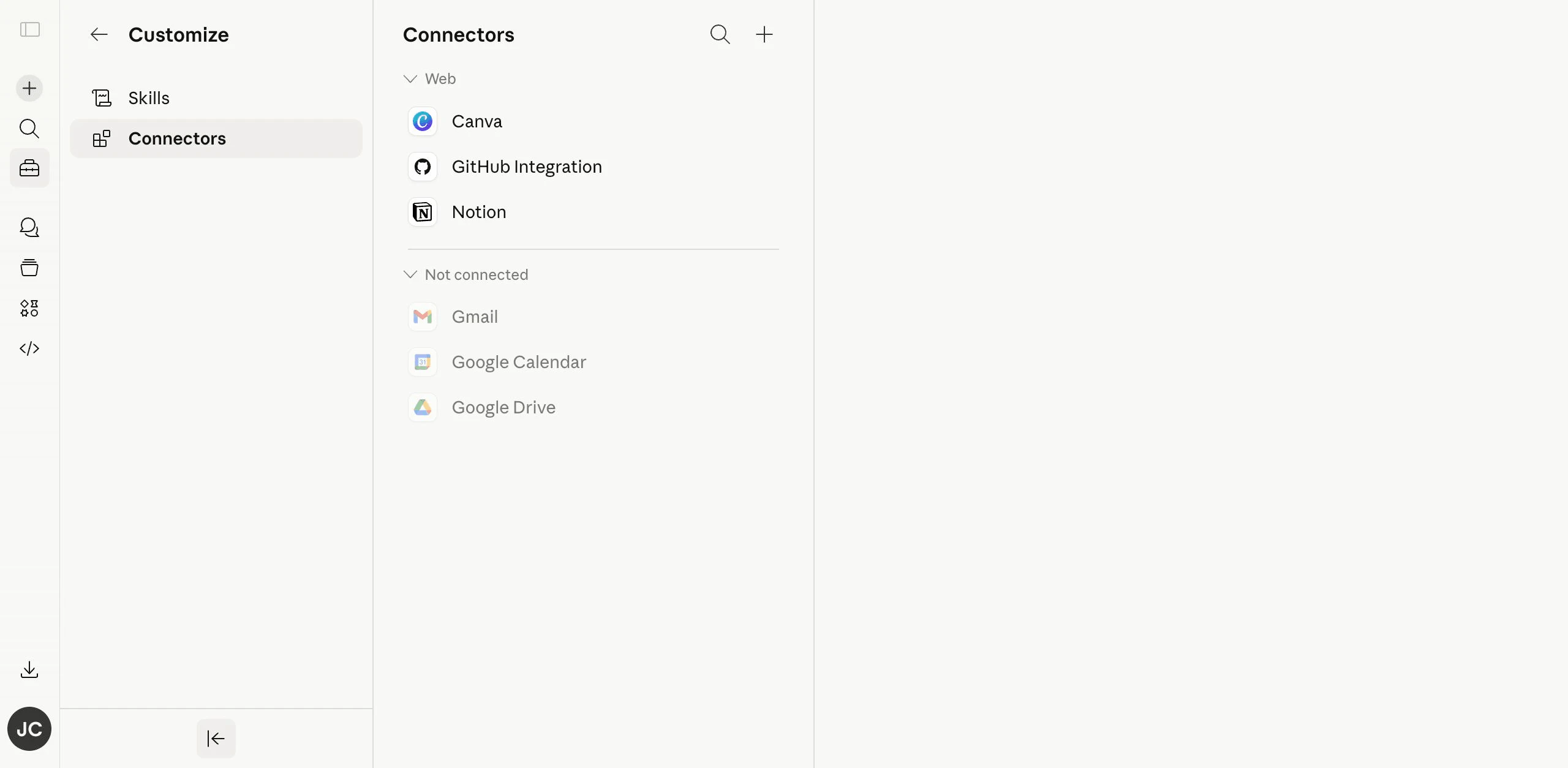
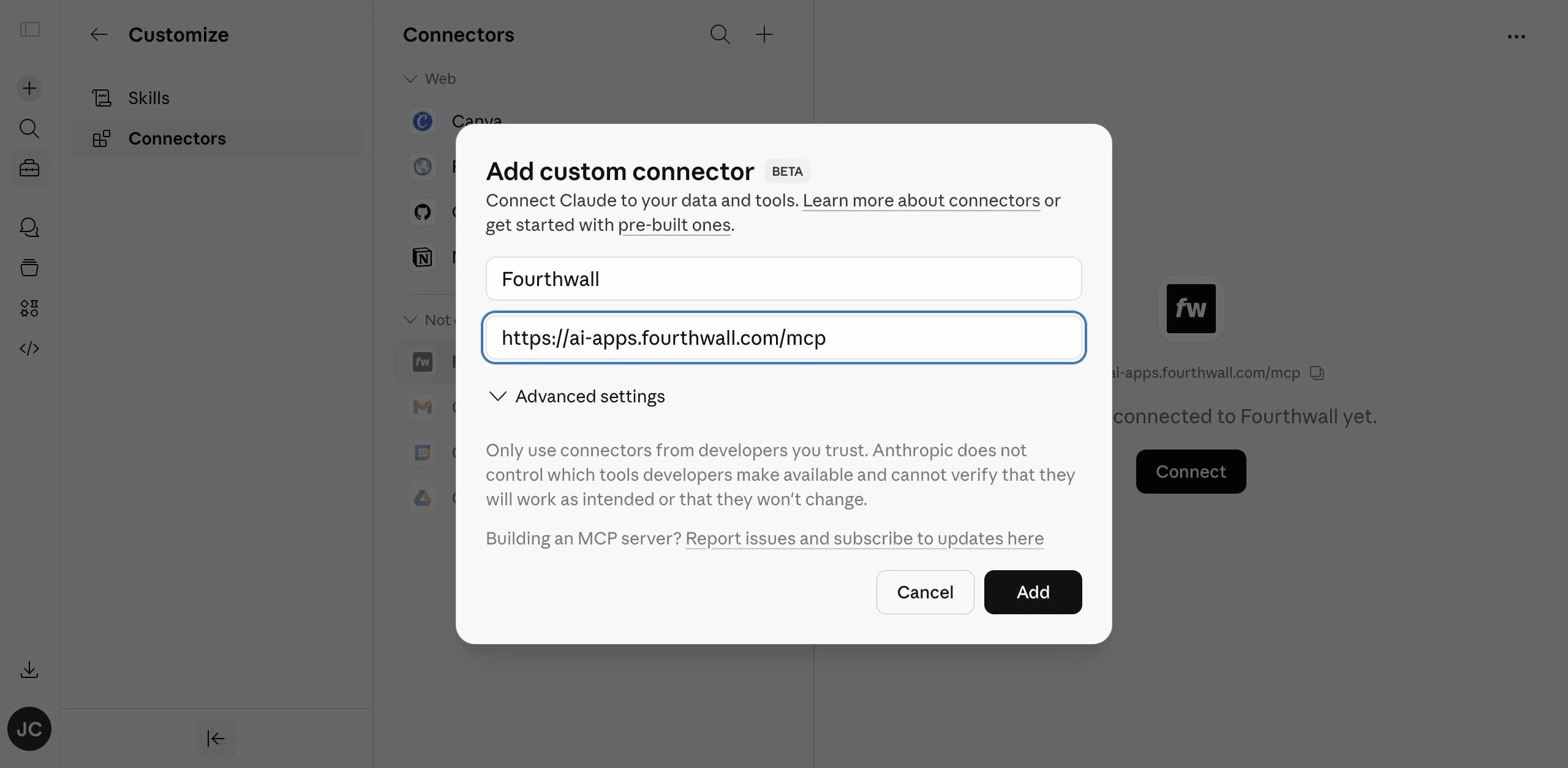
Step 2: Add Fourthwall as a custom connector
Click the + (Add connector) button at the top of the Connectors list, then choose Add custom connector. In the dialog, enter:- Name:
Fourthwall - Server URL:
https://ai-apps.fourthwall.com/mcp
Step 3: Connect your shop
Fourthwall will now appear in your connectors list. Click Connect.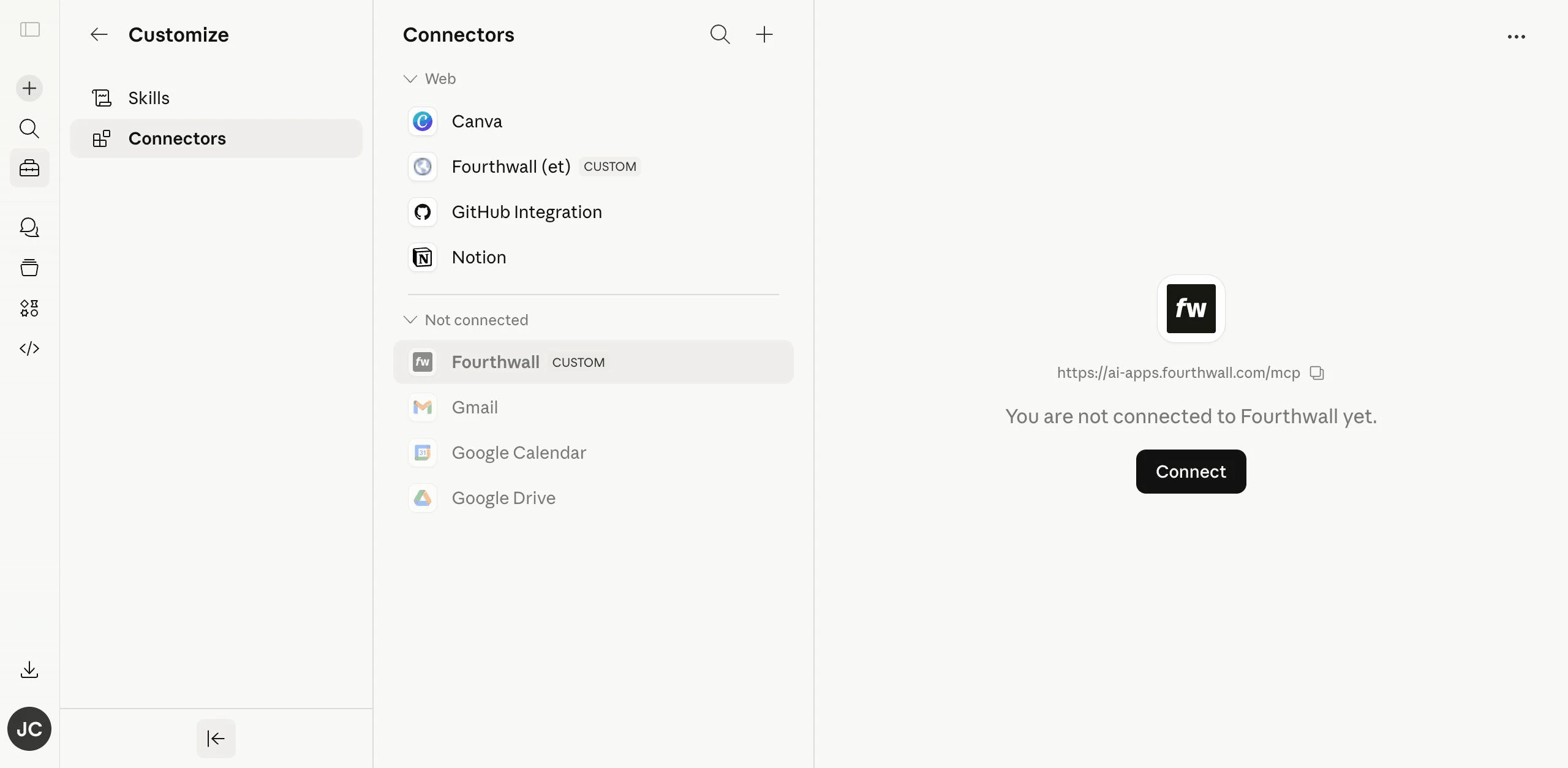
Step 4: Start a conversation
Open a new chat in Claude and just ask for what you want. Claude will automatically use the Fourthwall connector when your message is about your shop. Try something like:“Create a 20% off promotion called SAVE20, limited to the first 100 customers.”Claude will call the Fourthwall connector, fill in any missing details using quick-pick widgets in the chat, and confirm before creating the promotion in your shop.
Tips for getting the best results
- Review before you confirm. Any action that changes your shop will show a preview in the chat first. Double-check the details before clicking confirm.
- Upload artwork for new products. When you ask Claude to create merch, it will open an in-chat upload widget. You don’t need to paste images into the chat — use the upload button the widget provides.
- Iterate on previews. When creating merch, Claude renders previews against your artwork — keep asking for tweaks (“try it on a heavyweight hoodie”, “show me a mockup in black”) until you’re ready to publish.
Disconnecting or reconnecting
To disconnect Fourthwall, go back to Customize > Connectors, click Fourthwall, and choose Disconnect. Your shop data is not deleted — you’re just revoking Claude’s access. If you ever see Claude say that the Fourthwall session expired, open the connector page and click Connect again to refresh the connection.Frequently asked questions
Is the Claude App free?
Is the Claude App free?
Yes. The Fourthwall Claude App is free, and it works with the free tier of Claude.ai — you don’t need a paid Claude plan to use it.
Is my shop data safe?
Is my shop data safe?
The Fourthwall Claude App only sees what’s needed to answer your request. Claude can only take actions on your behalf after you confirm them in the chat, and you can disconnect at any time from the Connectors page.
Can I use the Claude App on my phone?
Can I use the Claude App on my phone?
Yes. Once you’ve connected Fourthwall on claude.ai, it works everywhere you’re signed into Claude — web, desktop app, and mobile app.
Does the Claude App work with ChatGPT or other AI assistants?
Does the Claude App work with ChatGPT or other AI assistants?
The Fourthwall MCP server at
https://ai-apps.fourthwall.com/mcp is standards-based, so it can also be added to ChatGPT and other tools that support MCP connectors. This page covers Claude specifically.It says my session expired — what do I do?
It says my session expired — what do I do?
Go to Customize > Connectors, select Fourthwall, and click Connect again. This refreshes your login without removing any settings.